¶ BeriMap: User Guide
Welcome to the BeriMap documentation. BeriMap visualization tool for tracking cellular coverage, tower infrastructure, and network evolution over time.

¶ 1. The Layout and Buttons
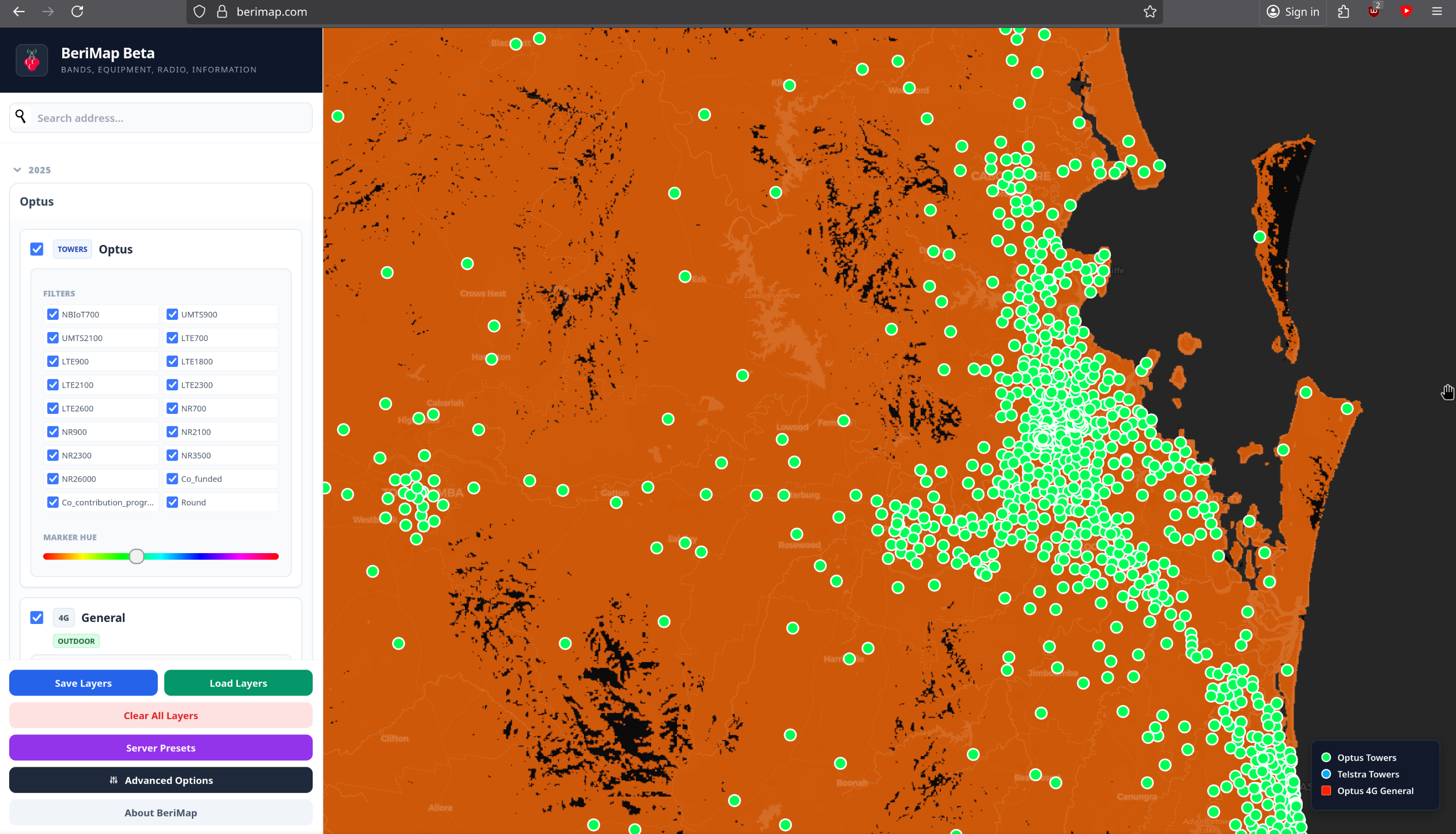
The interface is split into two main areas: the Control Sidebar on the left and the Interactive Map on the right.
Moving Around: Click and drag the map to pan. Use the mouse wheel to zoom.
Finding an Address: Use the Search Bar at the top of the sidebar. Type an address or suburb and select the result to fly the map to that location.
Resetting the View: If you want to start fresh, click "Clear All Layers" at the bottom of the sidebar. This unchecks all boxes and removes all data from the map.
Save/Load Configuration: * Save Layers: Exports your current map state (active layers, colors, zoom level) to a .json file.
Load Layers: Imports a .json file.
Server Presets: Access a list of "Official" map views. These are curated by me
Data: Is first sorted by year, Then MNO being Telstra, Optus and TPG(Also known as Vodafone) - See 4. Tower Infrastructure & Site Data and 3. Understanding Coverage Layers for more info
Key: In the bottom right is the key, This shows what colour means what
¶ 2. Is the Data Accurate? (Disclaimers)
Before using BeriMap for critical decisions, please keep the following in mind:
Expect Errors: Is the data 100% accurate? Likely not. Errors can occur during the initial data collection when he ACCC compiled it, Or during my processing of the raw files.
Frame of Reference: This map is intended as a helpful frame of reference. It often provides more granular info than "official" carrier maps, but you should always compare BeriMap data against:
The carrier's official coverage map found here: MNO maps
Physical tower data (available in the "Towers" layer). (This can also be wrong)
Real-world testing.
As well as other cool projects like mine ive linked a few here: External maps and data
MVNOs & Prepaid: This data may not reflect the experience on MVNOs (like Boost, Belong, or Aldi) or Prepaid services:
Telstra: Does not give MVNOs access to their full network. And prepaid only access to NSA 5g
Optus: Limits 5G access on Prepaid and MVNO plans to only NSA
TPG/Vodafone: Handling of MVNO/Prepaid 5G i don't know myself.
Your device may not support all used bands. This can also boil down to device model as well, Tools you can use to find more info can be found here: Device Data
Always check your specific plan's coverage maps. And cross reference.
Data is not real-time, The location i get my data is updated yearly. So it can be year (or more if i don't update right away) behind
Another thing to also note, This data also does not take into account the info below, And more or higher bands is not Always better:
Backhaul: The "pipe" connecting the tower to the internet.
Carrier Aggregation: How well devices combines bands.
Bandwidth (MHz): How "wide" the lane is on that frequency.
NSA vs. SA: Whether the 5G is standalone or relying on 4G.
¶ 3. Understanding Coverage Layers
Layers are shown as General, 2G,3G,4G or 5G and the band and if MOCN as well as some IOT stuff.

Toggling Data: Click the checkbox next to a year or provider to expand the list. Check individual bands (e.g., 5G 3600 or LTE 700) to display them.
MOCN (Multi-Operator Core Network): Layers labeled "MOCN" represent shared network infrastructure. These are often listed separately to distinguish between native and shared coverage. This is used by TPG past 2025 in areas outside of metro.
Band: This is the frequency used to carry the signal. Same concept as 2.4, 5 and 6Ghz wifi my this is written as Mhz (were 1Ghz is 1000Mhz)
General: This is just a combined of the whole footprint eg 4g in General
Tags: Look for tags like Outdooror ExtAnt to understand the type of coverage being visualized.
NBIOT and CAT-M these are cell techs almost like normal 4/5g but are used for iot stuff https://en.wikipedia.org/wiki/LTE-M this also links to the page about NBIOT as well
ExtAnt is When you are using a external antenna
Outdoor is just normal coverage with something like a smart phone
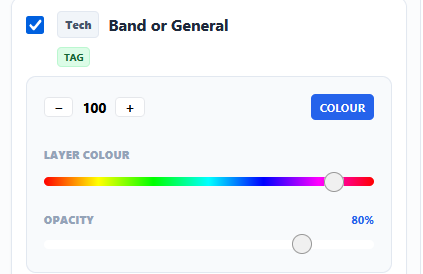
Every time you activate a layer, a Control Group appears in the sidebar for that specific layer. Use these to customize the look:
Hue Slider: Move the rainbow slider to change the color of the coverage. This is essential for comparing two different providers (e.g., make Telstra Blue and Optus Yellow).
Opacity Slider: Adjust the transparency. High opacity shows solid data; low opacity allows you to see the streets and terrain underneath.
Z-Index (+ / −): If two layers overlap, use the Z-Index buttons to bring one to the front or send it to the back.
Color/White Toggle: Switch between your custom hue and a "White" (No hue)
¶ 4. Tower Infrastructure & Site Data
Beyond coverage "blobs," you can view the physical locations of towers.
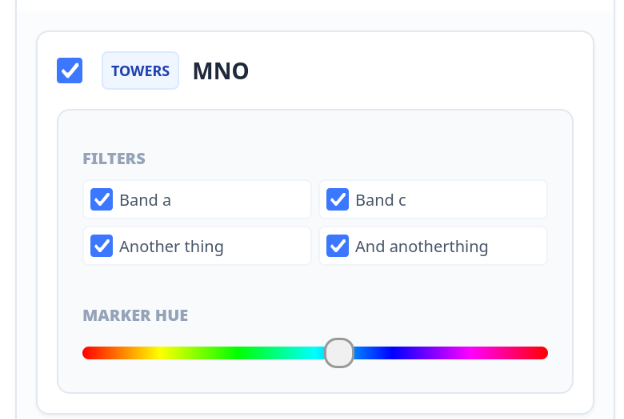
Enabling Towers: Check the "Towers" box under your chosen provider. Icons will appear representing base stations.
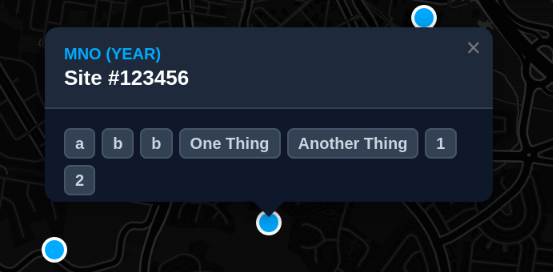
Interactive Popups: Click any tower icon to see a detailed information window including:
MNO: The primary operator.
MOCN (Multi-Operator Core Network): Layers labeled "MOCN" represent shared network infrastructure. These are often listed separately to distinguish between native and shared coverage. This is used by TPG past 2025 in areas outside of metro. (Yes this is copy pasted from above)
RFNSA ID: The site's unique identifier.
Active Bands: A list of all frequencies broadcast from that site.
Other info: Other then bands towers also have some other data attached to them, like "Co_funded" or "Co_contribution_program" any data that is provided as true or false within the data from the accc shows along the bands and filters
Band Filtering: Once towers are active, a "Tower Filters" menu appears. You can toggle specific bands (e.g., B28, B1, n78) to only show towers that support those specific frequencies. This can show info that's not in the layer info, for example, Telstra does not have a 26Ghz layer but you can still filter towers.
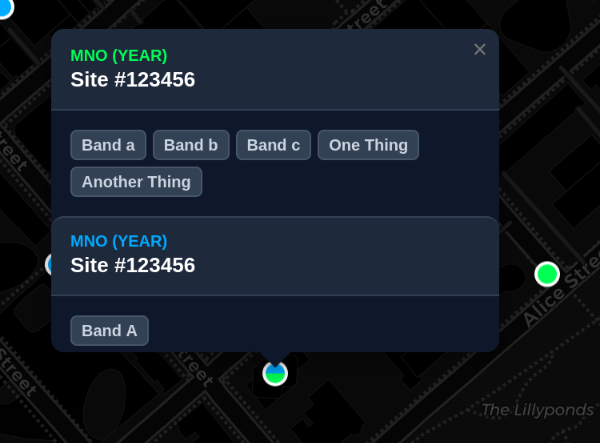
If more then years or mno's share a site the marker will also be split to show
¶ 5. Settings, Presets & Tools
Found in the Advanced Options (cog icon or button):
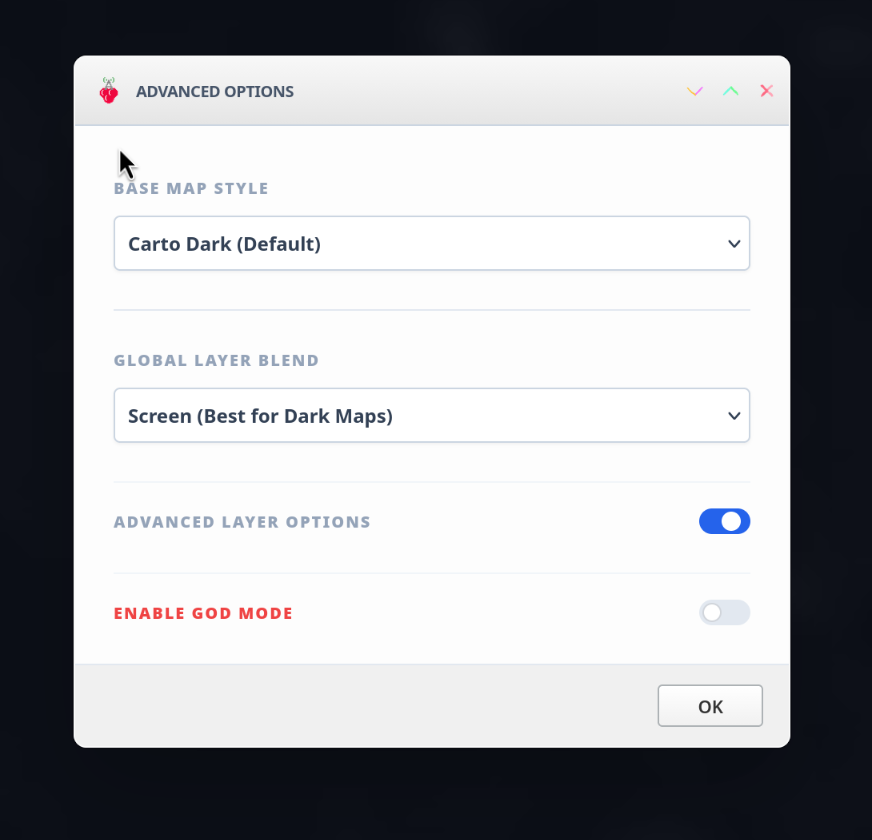
Basemaps: Choose between Dark, Light, Streets, or Satellite views.
Blend Modes: Different blend modes can be used for different map types Screen is good for dark base maps multiply is good for bright ones and “Normal” does not do either as the background if not transparent this is mostly a debug option.
Advanced Layer Options: Shows more options with layer controls and other data on the map. This is most likely gonna be dev stuff but im not gonna stop you from playing with it. May also give more data that i think alot of users might not need or want. (Aka somewhere for me to put the feature creep) Documentation for this is likely going to be worse to non beyond this but if there is any. It will be here: https://help.fluffyaussie.com/help/en-ca/9-berimap/20-advanced-doc
¶ 6. External Tools & Resources
Links outside of berimap that also give useful information see below:
¶ MNO maps
Telstra Retail: https://www.telstra.com.au/coverage-networks/our-coverage
Telstra Wholesale: https://www.telstrawholesale.com.au/products/mobiles/coverage.html
Telstra IOT: https://www.telstra.com.au/business-enterprise/about-enterprise/our-network/iot-coverage-map
Optus: https://www.optus.com.au/living-network/coverage
TPG(vodafone): https://www.vodafone.com.au/network/coverage-checker
¶ External maps and data
Tower info pulled from ACMA: https://ausphonetowers.com.au/
Tower info: https://www.rfnsa.com.au/?first=1
national audit mobile coverage: https://www.infrastructure.gov.au/media-communications/regional-communications-programs/better-connectivity-plan-regional-and-rural-australia/national-audit-mobile-coverage (have to follow sublinks to get to the map)
Mobile Spectrum ownership: https://robingill1.github.io/mobilespectrummap/
MNO bands uses: https://whirlpool.net.au/wiki/mobile_phone_frequencies
Crowdsourced data: https://www.cellmapper.net/map
Crowdsourced data: https://www.nperf.com/en/map/AU/-/-/signal
¶ Device Data
MNO 3g device compatibility checker: https://www.telstrawholesale.com.au/3G-Network-Closure-Blocked-Devices-Checker.html
MNO 3g device compatibility checker: https://www.optus.com.au/support/checkdevice
3g device compatibility checker: https://amta.org.au/check-my-device/
3g device compatibility List: https://isthisphoneblocked.net.au/
device specs checker: https://www.gsmarena.com/
¶ 7. Feedback and Bugs and data issues
To report issues you can find forms for different issues types as well as feedback
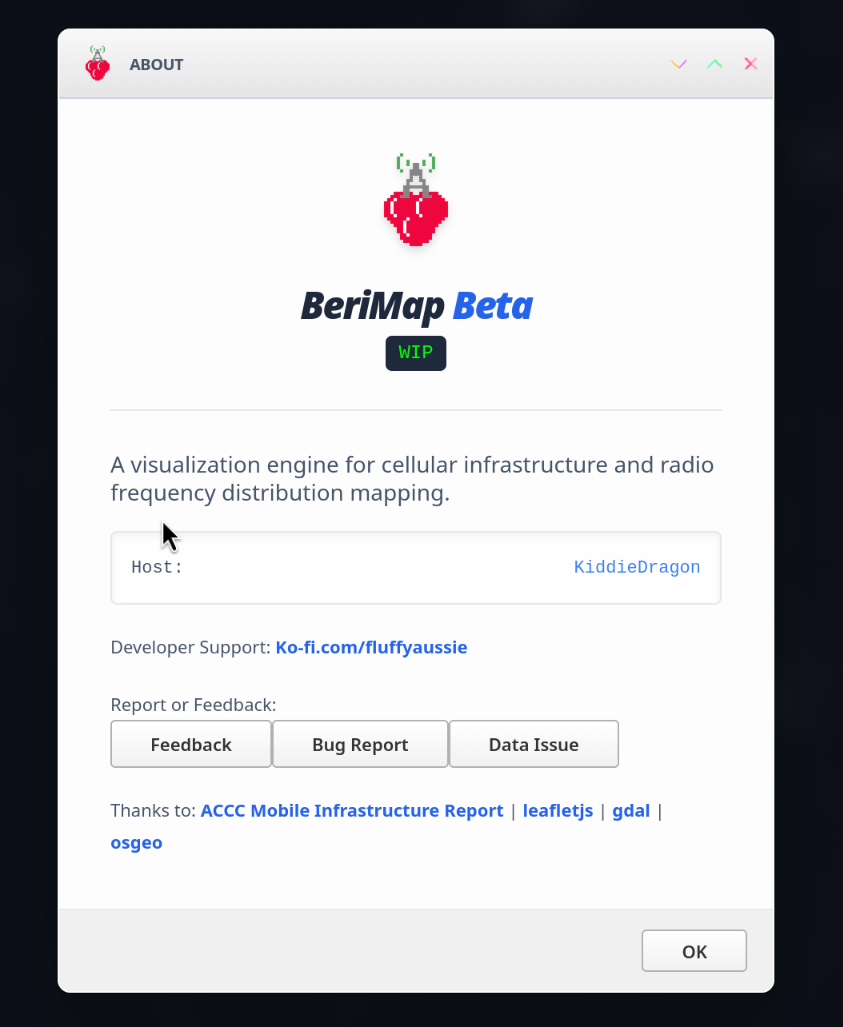
To see known feedback and issues you can do so from the following links:
Issues page: https://help.fluffyaussie.com/help/en-ca/10-issues
Data issues: https://help.fluffyaussie.com/help/en-ca/10-issues/21-known-data-issues
Site Bugs: https://help.fluffyaussie.com/help/en-ca/10-issues/17-known-bugs
Feedback and change log: https://help.fluffyaussie.com/help/en-ca/11-feedback-and-change-log
Feedback recorded: https://help.fluffyaussie.com/help/en-ca/11-feedback-and-change-log/18-recorded-feedback-and-wip-features
Change log: https://help.fluffyaussie.com/help/en-ca/11-feedback-and-change-log/19-change-log
¶ Debug info
When a form button is pressed, Or if you press the button on the map to display it (This can be enabled in the advanced options as is not shown by default) will show some information as to the maps state and about your connection.
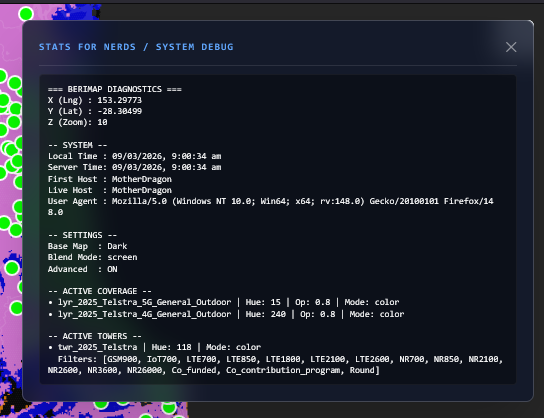
This information can be useful in identifying bugs as well as the location of errors. Or if you're a nerd.